
Updated 14 October 2026
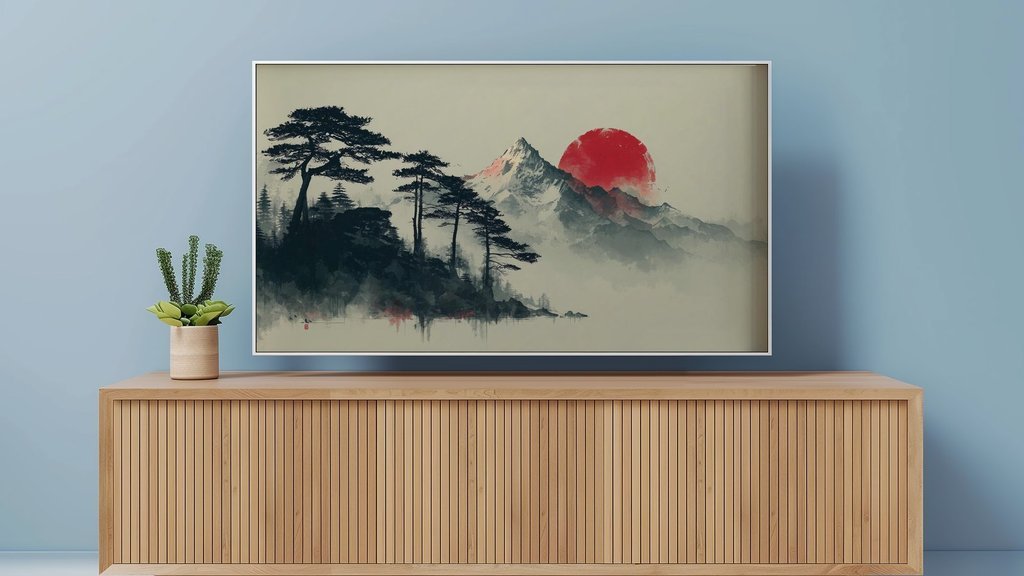
Samsung's Frame TV uses a motion sensor and a brightness sensor to run Art Mode on its own, turning the display on when you walk into the room and dimming or brightening the picture to match the light around it. When that behavior seems off, the fix is usually a setting, not a fault, and a smart plug can take care of the one thing the sensors can't: putting the whole TV to sleep on a schedule to cut down on standby power.
Kasa Matter Smart Plug with Energy Monitoring
The Kasa Matter Smart Plug earns the top spot because it answers the question most people actually have (how much power is Art Mode really using) with real numbers in the app, while still working as a plain scheduled on/off switch through Matter, Alexa, or Google Home.
See Price on Amazon →Our Top Picks at a Glance
| Award | Product | Price tier | Link |
|---|---|---|---|
| Best Budget | GHome Wi-Fi Smart Plug | $ · Budget | View |
| Editor's Choice | Kasa Matter Smart Plug with Energy Monitoring | $$ · Mid-range | View |
| Most Compact | Kasa Smart Plug Ultra Mini 15A | $$ · Mid-range | View |
| Best Value 4-Pack | Tapo Matter Smart Plug with Energy Monitoring (4-Pack) | $$$ · Premium | View |
| Best Rated | Govee Smart Plug with Energy Monitoring (4-Pack) | $$$ · Premium | View |
The Reviews
GHome Wi-Fi Smart Plug
This is a straightforward single outlet that pairs with Alexa or Google Home in a couple of minutes and gives you a schedule for the Frame without touching SmartThings at all. It's a fine pick if all you want is a nightly on/off timer for the TV and don't care about seeing exact watt usage.
Pros
- Cheapest way to put the Frame on a schedule
- Works with Alexa and Google Home
- Small enough to not block a second outlet
Cons
- No energy monitoring, so you won't see the actual wattage
- App-only scheduling, no physical timer dial
Skip it if: you specifically want to measure how many watts Art Mode is drawing in your room.
See Price on Amazon →Kasa Matter Smart Plug with Energy Monitoring
This is the one to buy if you actually want an answer to "how much power is my Frame using in Art Mode": it logs real-time and historical wattage in the Kasa app, so you can compare a bright room during the day against a dim room at night instead of relying on a generic spec-sheet number. Matter support means it also works directly through Apple Home or Google Home, not just Kasa's own app.
Pros
- Real-time and historical energy monitoring in the app
- Matter compatible, so it isn't locked to one ecosystem
- 15A/1800W is far more than a TV needs, so headroom is never a concern
Cons
- Costs more than a plain on/off smart plug
- Energy data lives in the app; there's no on-device display
Skip it if: you only want a basic schedule and don't care about seeing wattage.
See Price on Amazon →Kasa Smart Plug Ultra Mini 15A
The mini form factor is the whole point here: it sits flush against the wall instead of hanging off it, which matters if the Frame's outlet is in a tight spot behind furniture or a floor stand. Kasa's app handles scheduling and away mode cleanly, and 15A is plenty of headroom for a TV.
Pros
- Barely sticks out from the wall plate
- Reliable, well-reviewed Kasa app
- 15A rating covers a TV with room to spare
Cons
- No energy monitoring on this specific model
- Kasa now nudges new accounts toward an optional subscription for some features
Skip it if: you want wattage readouts as well as scheduling.
See Price on Amazon →Tapo Matter Smart Plug with Energy Monitoring (4-Pack)
Buying four of these works out to roughly the price of two single energy-monitoring plugs elsewhere on this list, which makes sense if the Frame isn't the only thing in the room you want on a schedule, like a soundbar or a floor lamp for evening Art Mode viewing. Each plug still gets its own monitoring and Matter support, not a shared reading.
Pros
- Four monitored outlets for close to the price of two elsewhere
- Matter compatible for Apple Home, Google Home, or SmartThings
- Handy if you're scheduling more than just the TV
Cons
- Overkill if you only need one plug for the Frame
- Tapo's own app is a second app if you're not already using it
Skip it if: you only need to schedule the TV itself and nothing else in the room.
See Price on Amazon →Govee Smart Plug with Energy Monitoring (4-Pack)
The highest average rating of anything on this list, and it covers both Wi-Fi and Bluetooth so it can still be controlled locally if your Wi-Fi drops. Like the Tapo pack, it comes as four plugs, which is more than most people need for a single Frame TV but brings the per-plug cost down close to a budget single plug.
Pros
- Highest-rated pick here
- Works over Bluetooth as a local fallback if Wi-Fi is out
- Energy monitoring included on every plug in the pack
Cons
- Four plugs is more than a single-TV setup needs
- Govee's app pushes its wider smart-home lineup, which some people find noisy
Skip it if: you'd rather buy exactly one plug than a pack of four.
See Price on Amazon →What to look for
What we considered and skipped
- GHome Smart Plug (second listing): same product line as our budget pick above, just a different bundle size and price point, with no added functionality
- GHome Smart Plug (third listing): another bundle variant of the same budget plug, kept out to avoid listing the same product three times
Frequently asked questions
Where is the motion sensor on a Samsung Frame TV?
It sits at the front of the TV along with the brightness sensor. Samsung's guidance is to keep it clear of furniture, stands, or anything else placed directly in front of the screen, since blocking it affects both motion detection and the picture's brightness and color.
Why does my Frame TV's Art Mode keep turning on or off on its own?
That's the motion sensor doing its job: it wakes the display when it detects movement in the room and lets it sleep again after a period with none. If it feels too twitchy or too slow to react, adjust Motion Detector Sensitivity and Sleep After in the SmartThings app rather than assuming something is broken.
Can I turn off the Frame TV's motion sensor completely?
Not as a standalone toggle. It's built into how Art Mode functions. You can tune how sensitive it is or how long it waits before sleeping, but there's no single switch that disables it entirely while keeping Art Mode on.
How much electricity does the Frame use in Art Mode?
Samsung states that Art Mode uses about 30 percent of the power draw of regular TV viewing, and the exact figure shifts with your room's ambient light since the screen's backlight adjusts to match it.
Will a smart plug work with a Frame TV that's in Art Mode?
Yes. A smart plug simply cuts power at the outlet, so it works the same whether the TV is in Art Mode or regular TV mode. It's a straightforward way to schedule the Frame off overnight on top of whatever the built-in sensors are already doing.
How do I make Art Mode brighter or dimmer manually?
In the SmartThings app, open Art Mode settings and use the Brightness slider. Samsung describes it simply: the closer the setting is to 50, the brighter the image looks on screen.
How we chose
Every plug listed here came back from a live Amazon product search for Wi-Fi smart plugs and energy-monitoring outlets, checked for a rating floor in the mid-4s and picked to cover a genuine range: a true budget option, the smallest physical footprint, a single monitored plug, and two 4-packs for anyone scheduling more than just the TV. Two near-identical bundle variants of the same budget plug were left out rather than counted as separate picks.
This site is reader-supported and may earn a commission on qualifying bookings or purchases made through our links, including as an Amazon Associate. Prices and availability shown by our partners are always current on their own site; check the live listing before buying.